
Perfmatters is a REALLY great performance plugin for your blog. It’s lightweight and speeds things up so well. It’s also very easy to set up. I use it on all of my clients’ sites, in addition to their caching plugins (usually WPRocket).
I’ll walk you through my settings here, but they can and should be customized for each blog.
Once you’ve purchased and installed it, just add your license key and get started!
When you make changes to the settings, just be sure to clear any caches you have and then test your blog in a private or incognito browser. If something is negatively affected, just come back and change the setting back. This plugin won’t break anything, it’s all very easily reversed.
General settings:
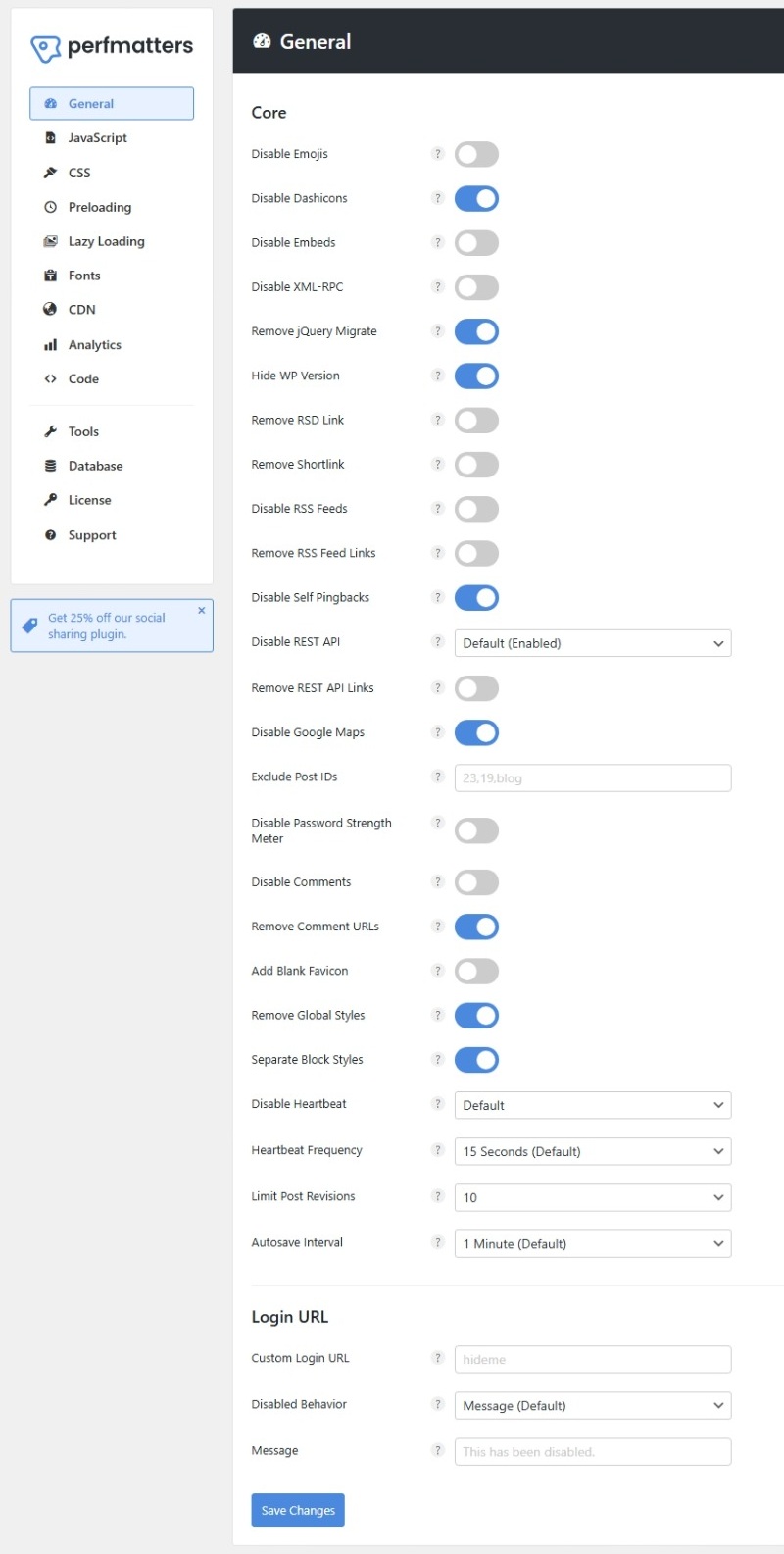
- Dashicons are icons that come with WordPress, most themes only use them inside your dashboard, but some themes (like Genesis!) use them on your visitor’s side too. When they’re used on the visitor’s end (the “front end”), they can slow your blog down. If you disable them, check your theme and make sure icons like your mobile menu don’t disappear. If they do, just turn the setting back off. (Don’t disable it if you’re using a Genesis theme.)
- Remove jQuery Migrate for a performance boost
- Hide WP Version is enabled for security reasons. Normally, hackers can see which version of WordPress you’re on, and if it’s a dated one with a vulnerability, hackers can exploit it. This just prevents them from seeing it to reduce the risks.
- Removing comment URLs helps avoid spam comments since spammers can’t link back to their own sites.
- Removing Global Styles gets rid of a bunch of CSS that WordPress added in case you want to add duotone filters to your images (which food bloggers wouldn’t want to do).
- Separate block styles only loads the code for blocks that are used on each page, instead of loading all of it whether needed or not.
- Login URL settings are great for extra security. It easily changes the place you log in to (normally yourblog.com/wp-admin) to whatever you want it to be (like yourblog.com/squirrel) to prevent bots from trying to log in.
JavaScript settings:
These can be tricky depending on your theme, so just test, test, test when you play with these settings!
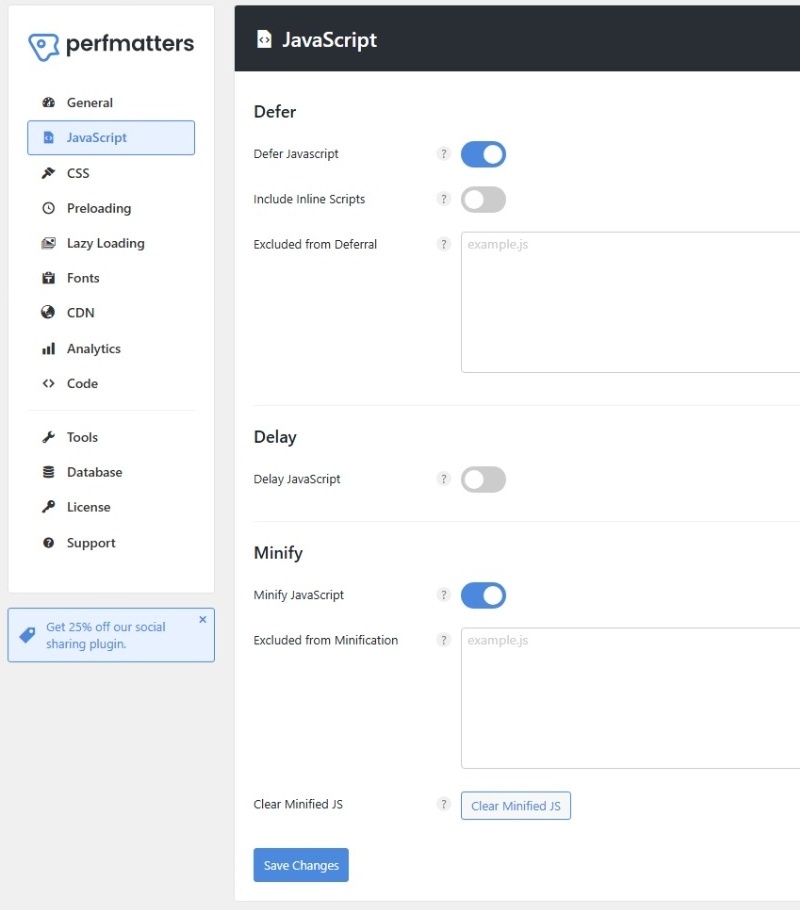
- Defer JavaScript. This can be very valuable for improving your site speed and performance scores. JavaScript is what adds a lot of the useful functionality to our blogs (like mobile menus and jump to recipe buttons), BUT they take longer to load. What this setting does is tells your blog to load everything else first, and then load those cool features. On some blogs, this can save multiple seconds of load time, so your visitors actually get to see your content instantly instead of waiting for those to load first.
Again, test, test, test and make sure everything loads properly.
If there are some things that are missing, or you still want to load instantly, like a mobile menu, you can ask your theme developer for the file path and then put it in the “exclude” box. - Delay JavaScript is similar, only it won’t load the JavaScript until a user actually interacts with the page by scrolling or clicking. I generally don’t recommend this setting for food bloggers, because the Jump to Recipe button won’t show until then.
- Minify JavaScript does just what it sounds like, but it can cause things to go a little silly, so just test everything if you use it.
CSS settings:
This is my favorite feature of Perfmatters. WP Rocket has this option too, but it doesn’t do it as well as Perfmatters does. To me, this is the most important setting, especially if you’re not using another performance plugin.
Just toggle this on, and test thoroughly. What it does is remove all the extra code that isn’t needed for each page so you’re not waiting for things to load that you aren’t even using.
Again, if something is missing or looks funny, just contact your developer or a plugin developer and ask for the file path so you can add it to the exclusion box.
You can also toggle on Minify CSS after everything looks good with the Remove Unused CSS setting on and test again.

Lazy Loading Settings:
Without lazy loading on, all the images in your blog posts will load as soon as someone opens the page, even if they aren’t showing on the screen yet. What lazy loading does is wait to load them until the visitor starts scrolling down. Visually it makes no difference to them, but what they do see right away loads much faster since the top of the page isn’t waiting for all those images.
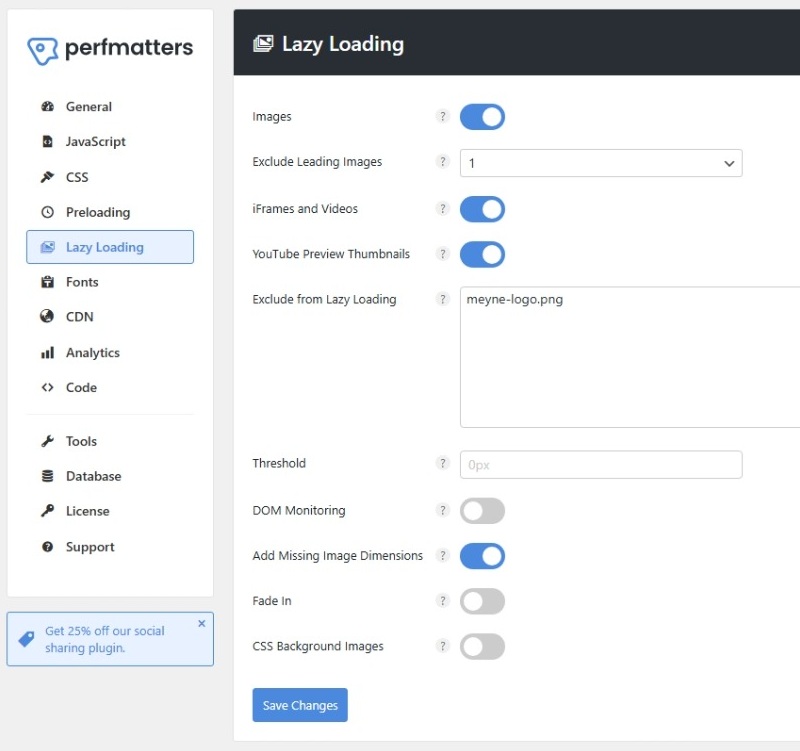
- Exclude Leading Images excludes the first number of images you choose. I usually set this at one so the first image will load right away.
- iFrames and Videos does the same thing for videos (very helpful!), if you’re using that, I would also turn on YT Preview Thumbnails, because it looks better to see the thumbnail anyway and it buys you some speed.
- The rest of the settings are for fine-tuning, and you can play with them if you’d like to see if they make a difference for you.
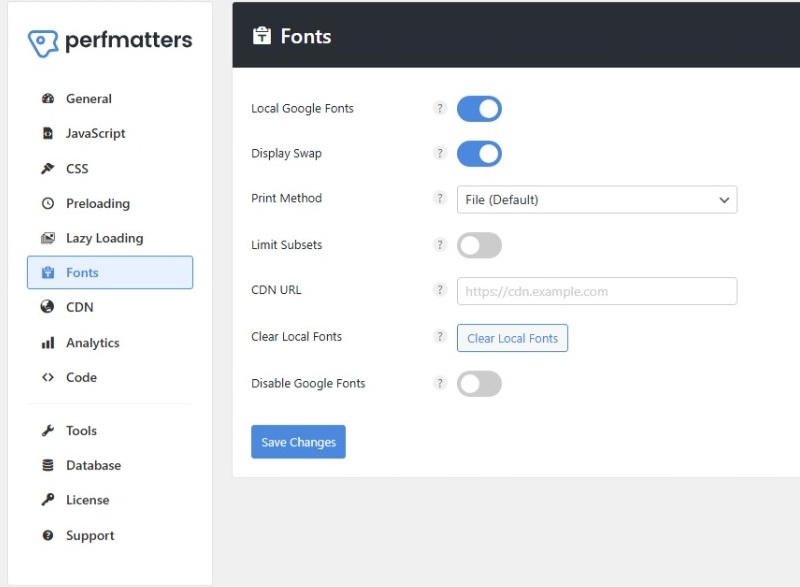
Fonts Settings:
There’s more gold here. If you’re using specifically chosen Google fonts, you’ll want to use this feature. When you use Google fonts, as your site is loading, it has to go get the fonts from Google’s servers. It always takes more time when you have to go to a third website, so this loads them on your own site and takes out that dependency.
Side note: if you’re using a Kadence theme, you can also disable them in Customizer -> Performance. You only need to do it one place of the other.
If you’re happy using default (system) fonts and not custom ones, go ahead and toggle on Disable Google Fonts. This can be especially helpful if you’re using a Genesis theme, which can sometimes hide Google fonts and load them even if you’re not using them.
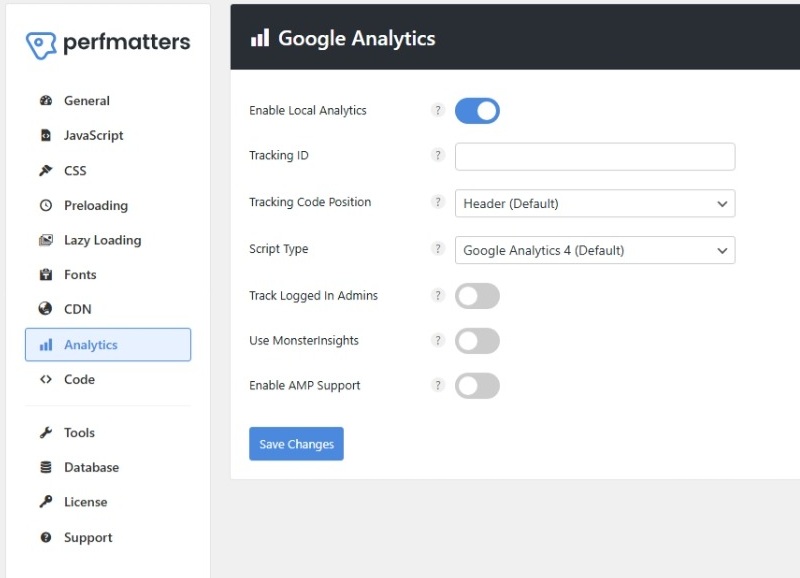
Analytics Settings:
This can help if Google Analytics are slowing down your blog, but be careful here and if you use it, check your Analytics and make sure that everything is still showing accurately.
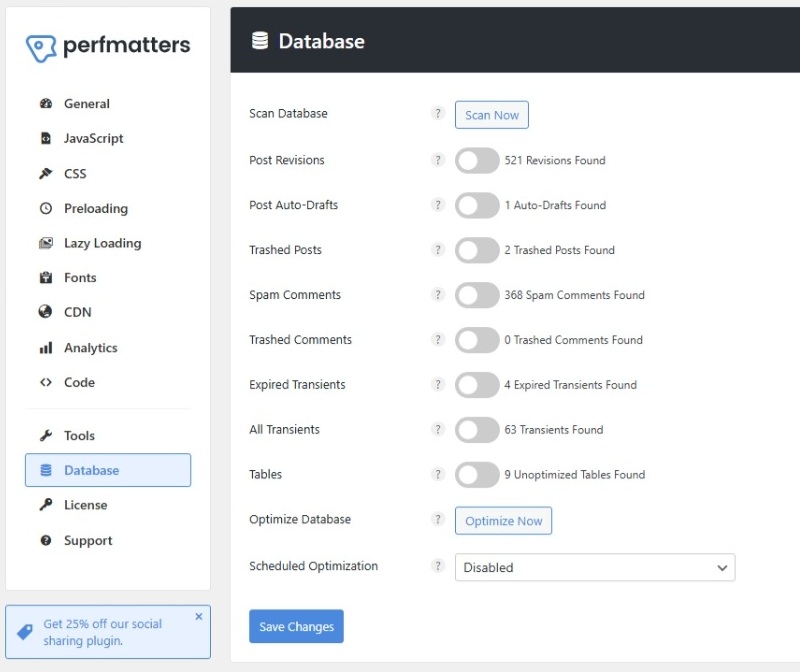
Database Settings:
The database tab is a very helpful place too. This keeps everything nice and clean in the “back end” for you. You can click the Scan Now button and it will show you how many things that probably aren’t needed that are taking up space on your blog. Did you know that by default, every revision you make to a post is stored in case you need to reverse changes?
Once you scan, you can check all the boxes and then click Optimize Now. But I do recommend backing up your blog just in case of anything before optimizing. (Note: if you’re using a quality host like BigScoots, you will automatically have daily backups.)
Those are the key settings that should make a huge difference for your blog speed and performance. If you have questions, just let me know below and hopefully I have an answer!